Housecall Pro
Step-by-step guide for connecting the Inrconnect Housecall Pro MCP to ChatGPT.
Overview
Use this guide to connect the Inrconnect Housecall Pro MCP to ChatGPT so you can query Housecall Pro data and run supported actions from ChatGPT.
Before You Start
Make sure you have:
- An active Inrconnect account
- Access to the Housecall Pro MCP in Inrconnect
- A ChatGPT account with MCP-compatible connector support enabled
- Any required credentials or tokens copied and ready
Step-by-Step
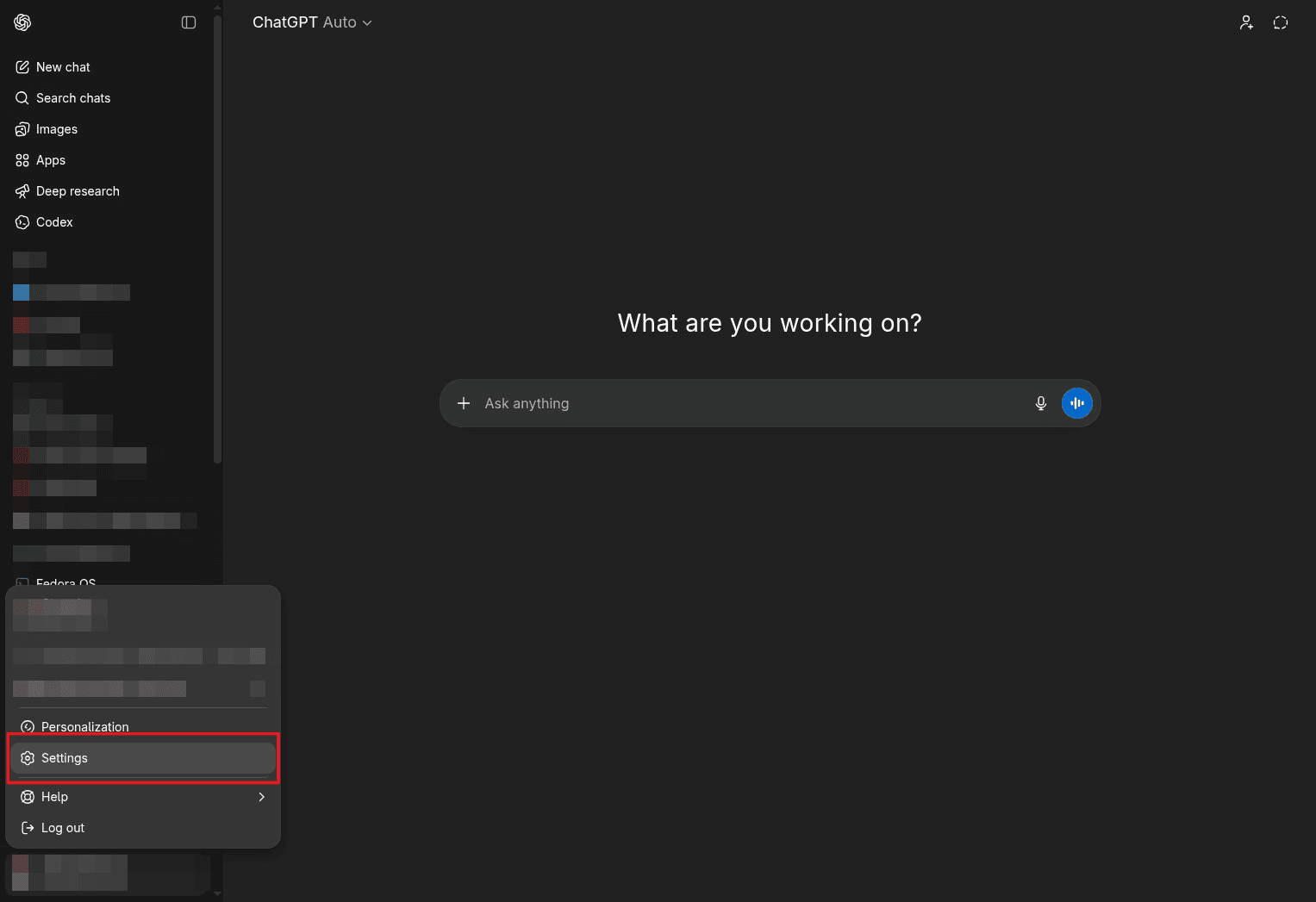
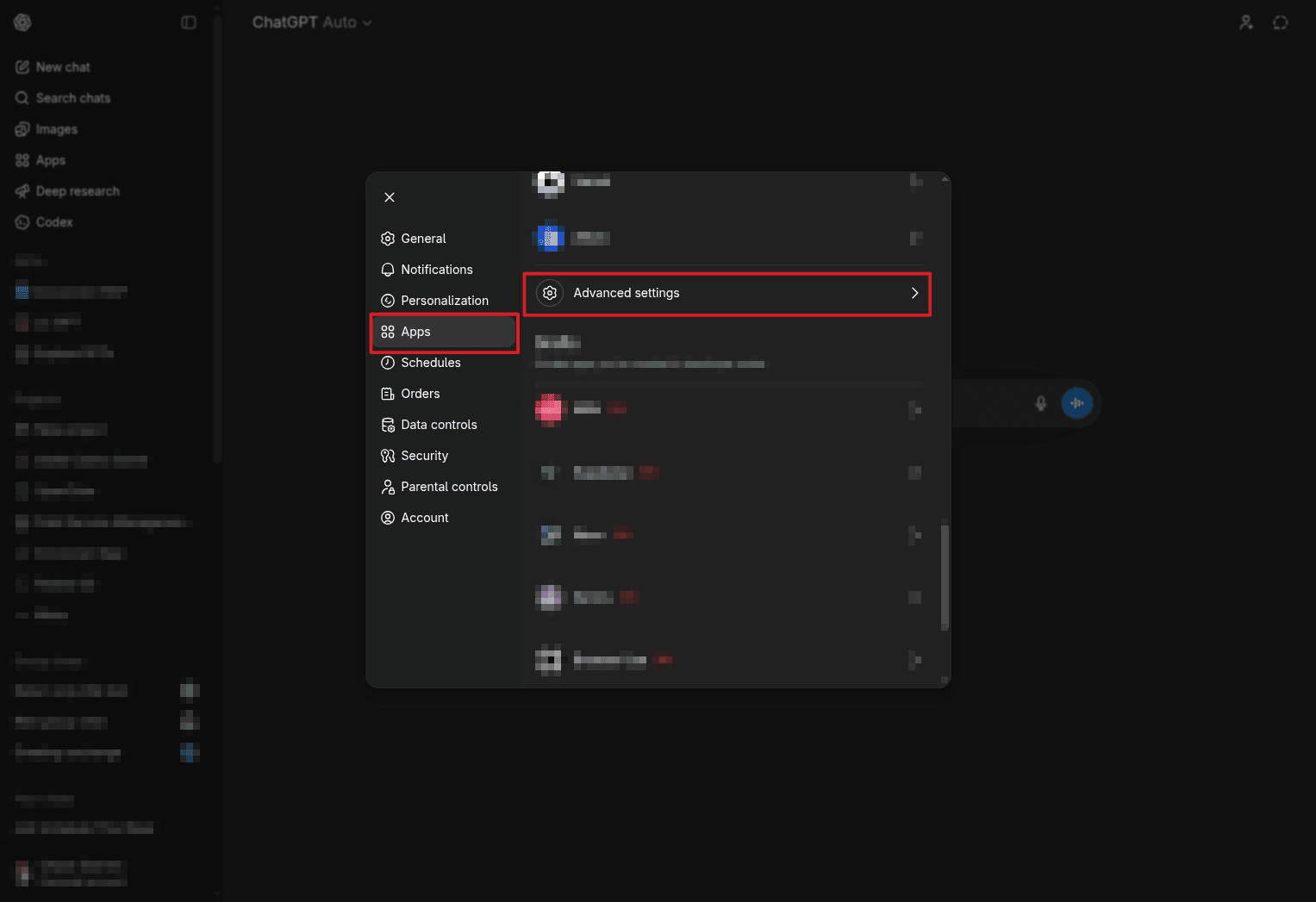
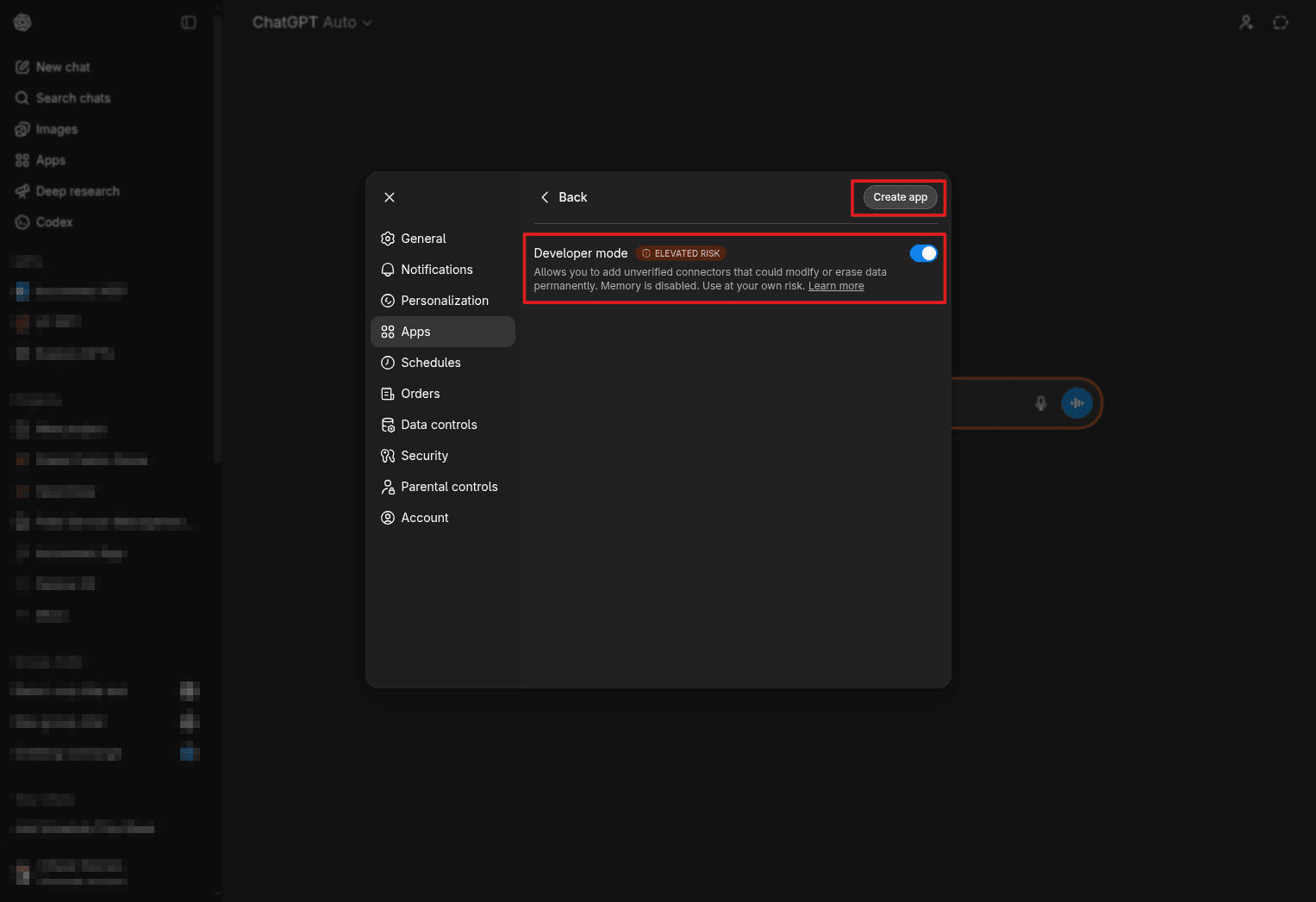
Step 4: Create the Housecall Pro app
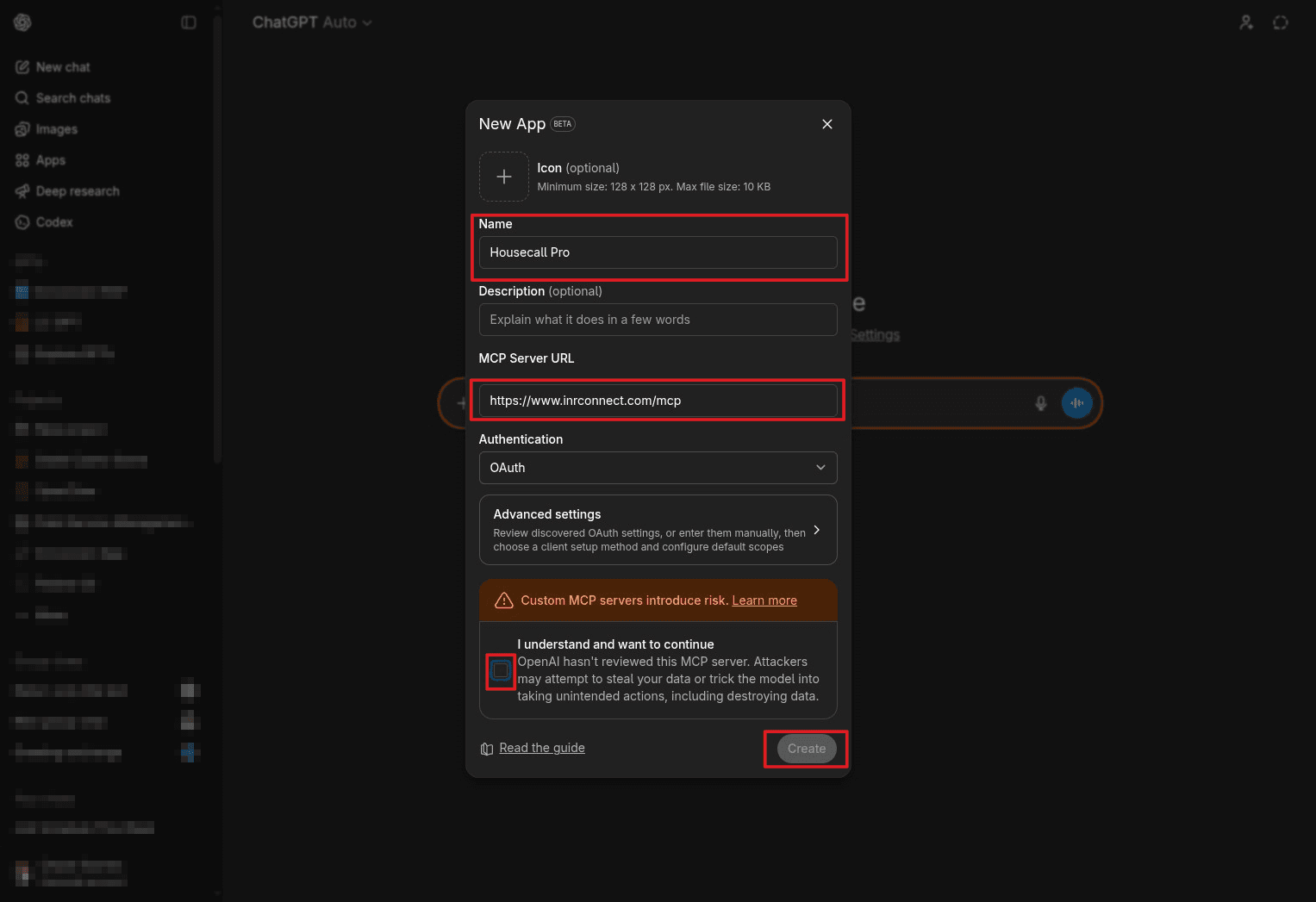
For the app name, enter Housecall Pro or HCP.
For the MCP Server URL, enter:
https://www.inrconnect.com/housecall-pro/mcpCheck the consent box, then click Create.
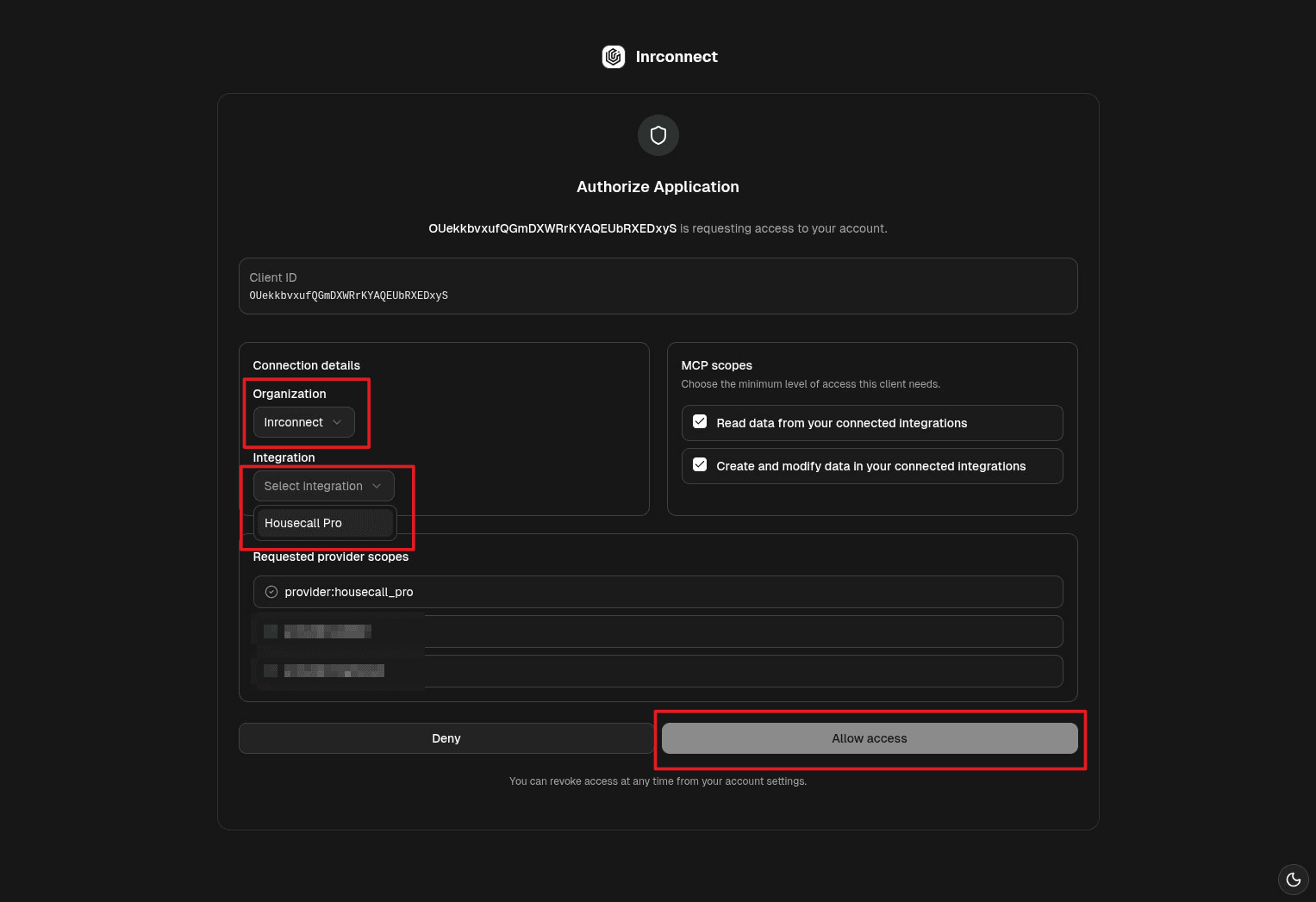
Step 5: Choose your organization and integration
Select your organization and choose Housecall Pro for the integration.
Note: If you do not see Housecall Pro, first connect your Housecall Pro API key in Inrconnect here:
Housecall Pro Integration Settings
Step 6: Test the connection in ChatGPT
Go back to the chat. Type @housecall pro, select the app, and then ask:
What all can you do with the Housecall Pro tool?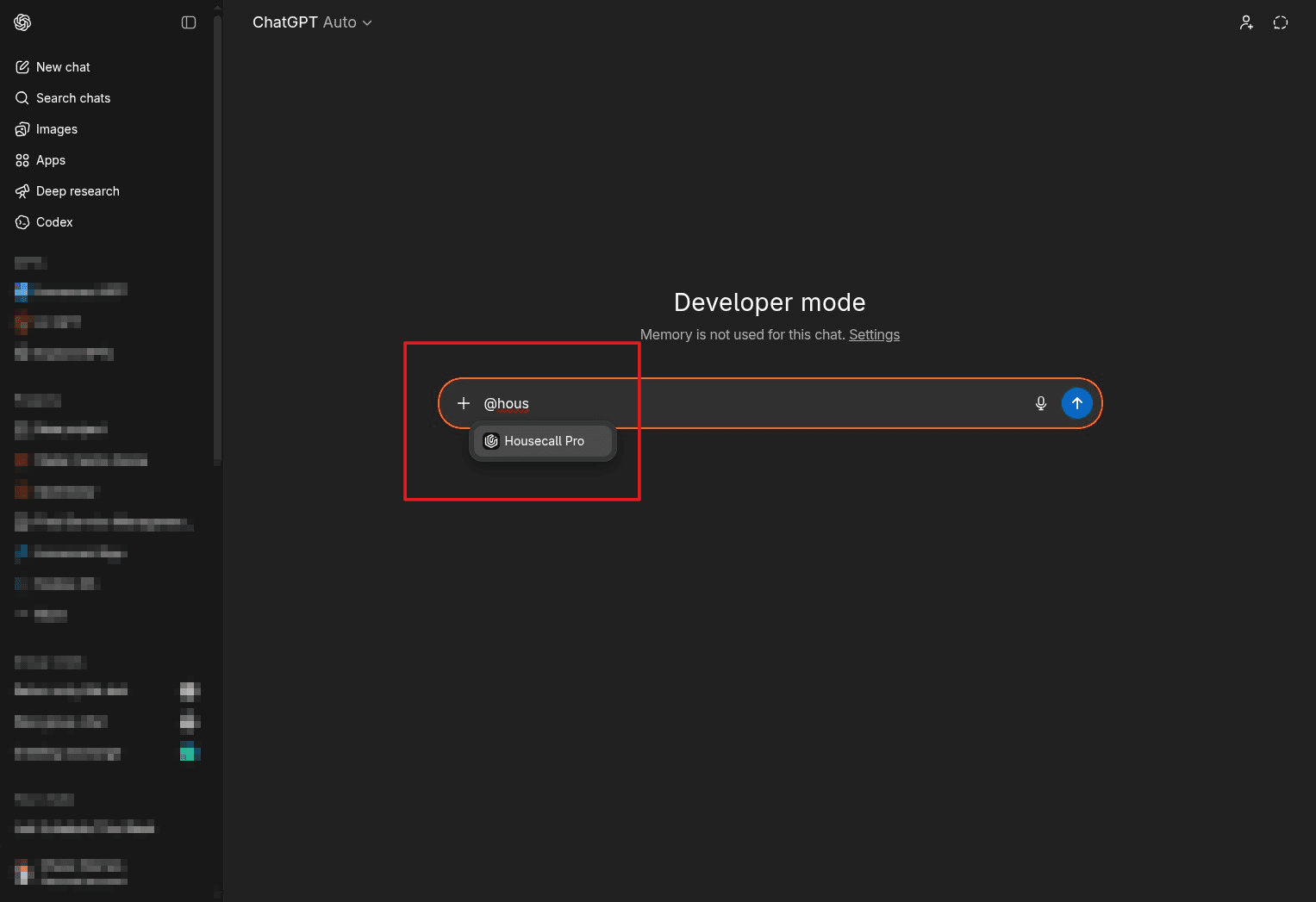
Verification
After setup, test with a simple prompt that confirms ChatGPT can access the connected Housecall Pro MCP.
Example:
@housecall pro What all can you do with the Housecall Pro tool?