Connect to ChatGPT
Add the Inrconnect Housecall Pro MCP to ChatGPT as a plugin.
Overview
This guide connects the Inrconnect Housecall Pro MCP to ChatGPT so you can query Housecall Pro data and run supported actions directly from a ChatGPT conversation.
What You Need
- An active Inrconnect account with Housecall Pro connected - see Getting Started with Housecall Pro if you have not connected your API key yet
- A ChatGPT Plus account
- A Housecall Pro account on a MAX plan (required for API access)
Step-by-Step
Enable developer mode
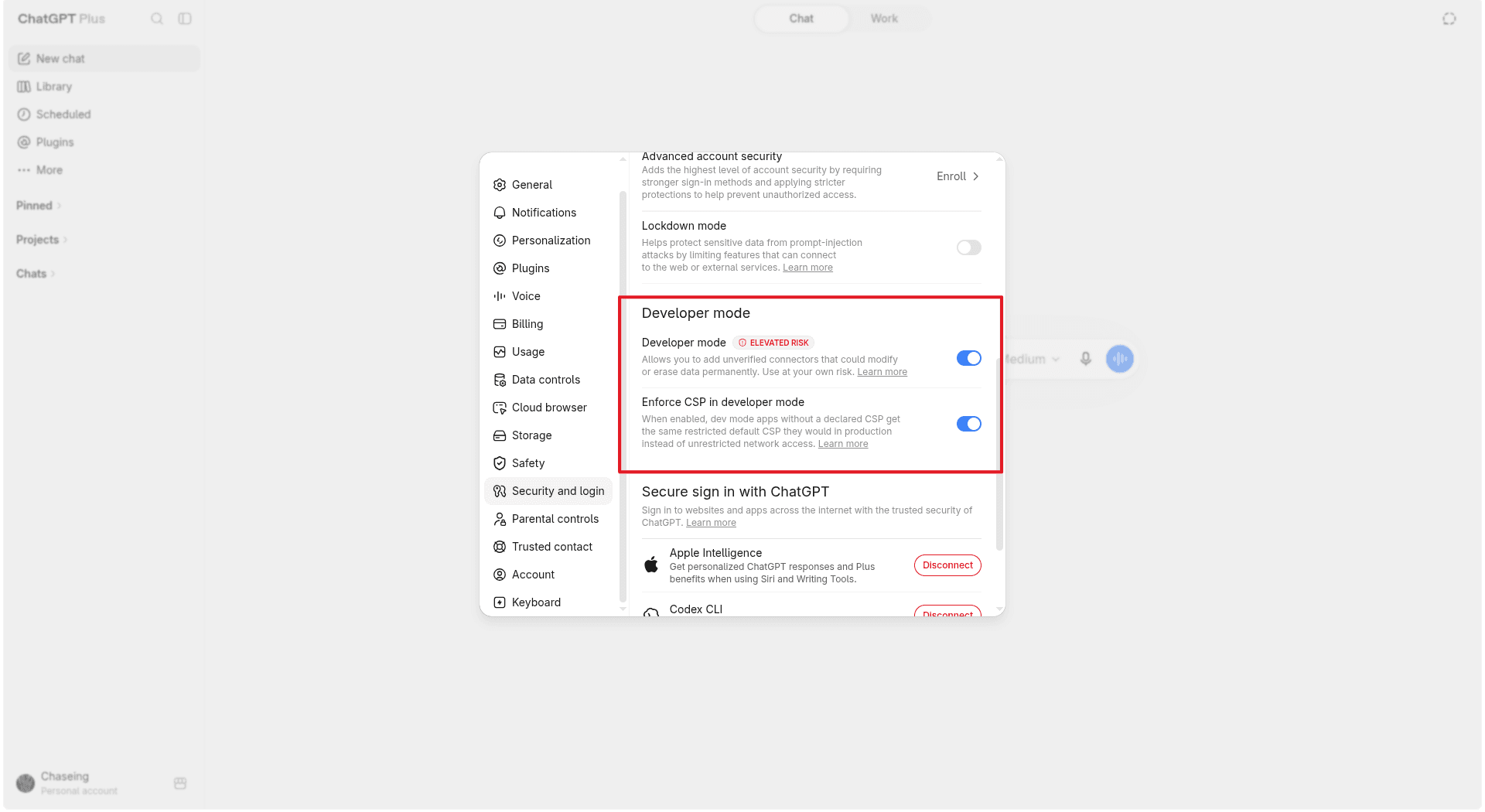
Open ChatGPT's security settings and scroll down to the Developer mode section. Toggle on both Developer mode and Enforce CSP in developer mode.
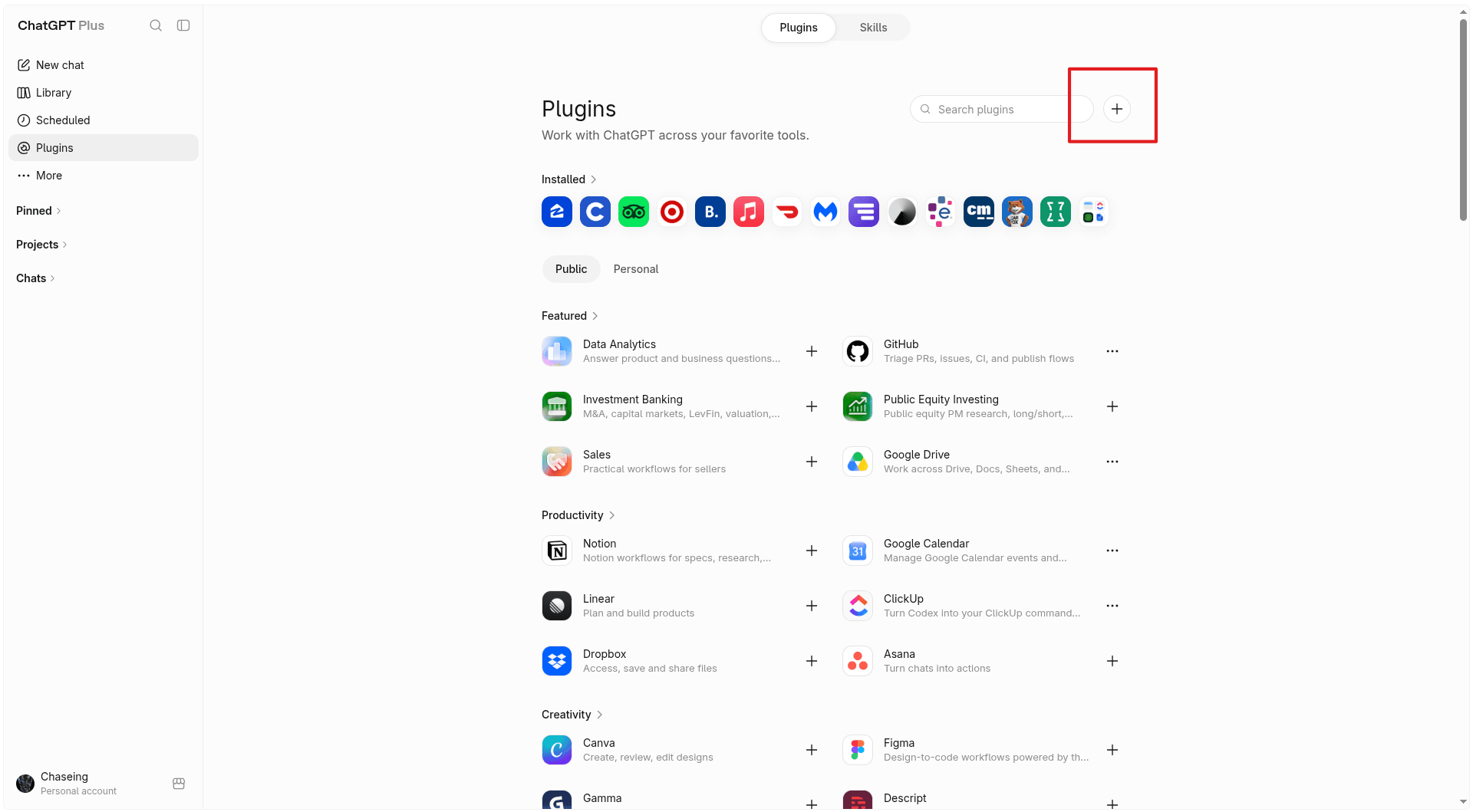
Fill in the plugin details
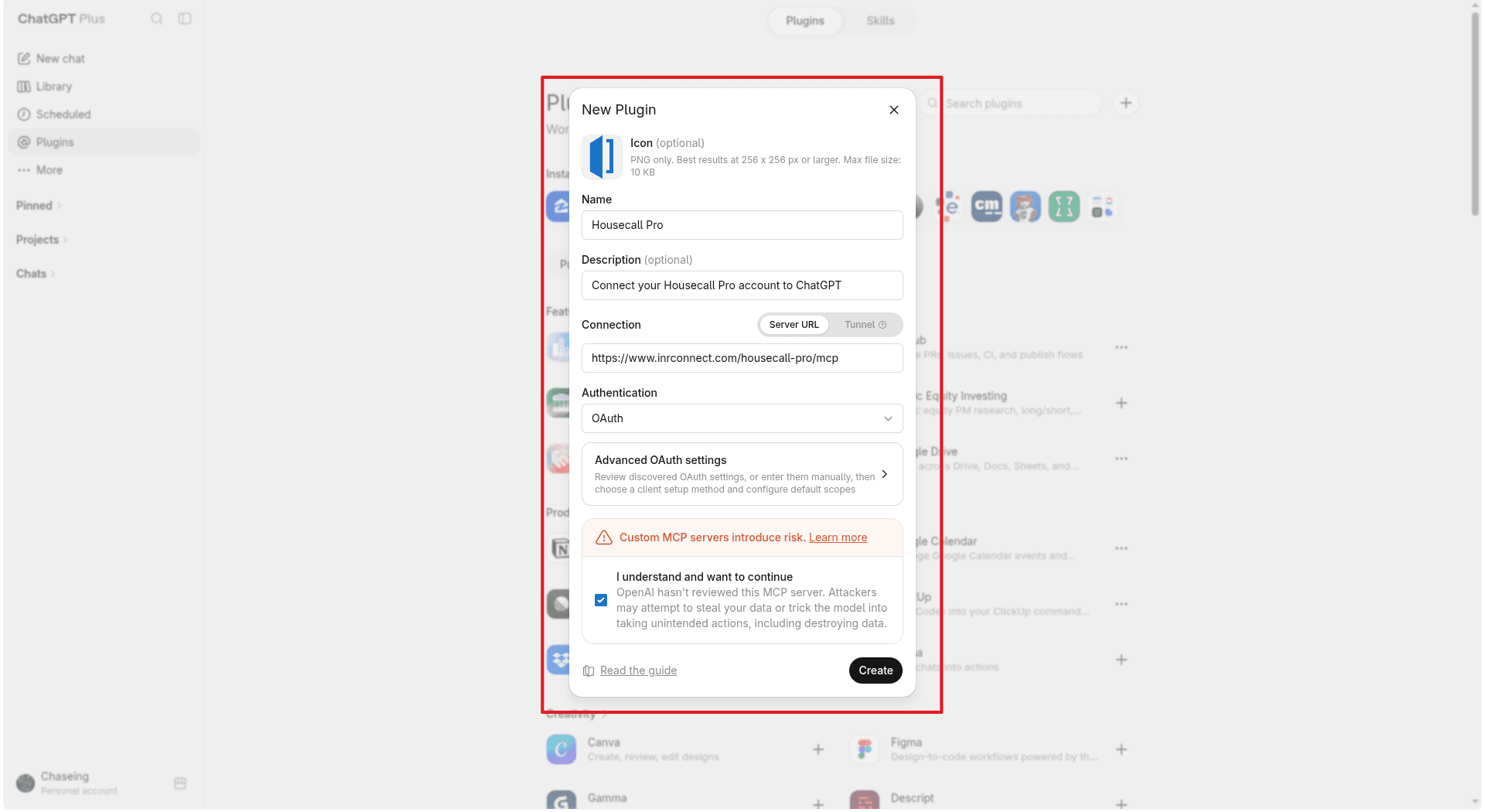
In the New Plugin dialog, enter the following:
- Icon (optional): download the Housecall Pro icon
- Name:
Housecall Pro - Description:
Connect your Housecall Pro account to ChatGPT - Connection (Server URL):

https://www.inrconnect.com/housecall-pro/mcpLeave Authentication set to OAuth, toggle on I understand and want to continue, then click Create.
Sign in with Housecall Pro
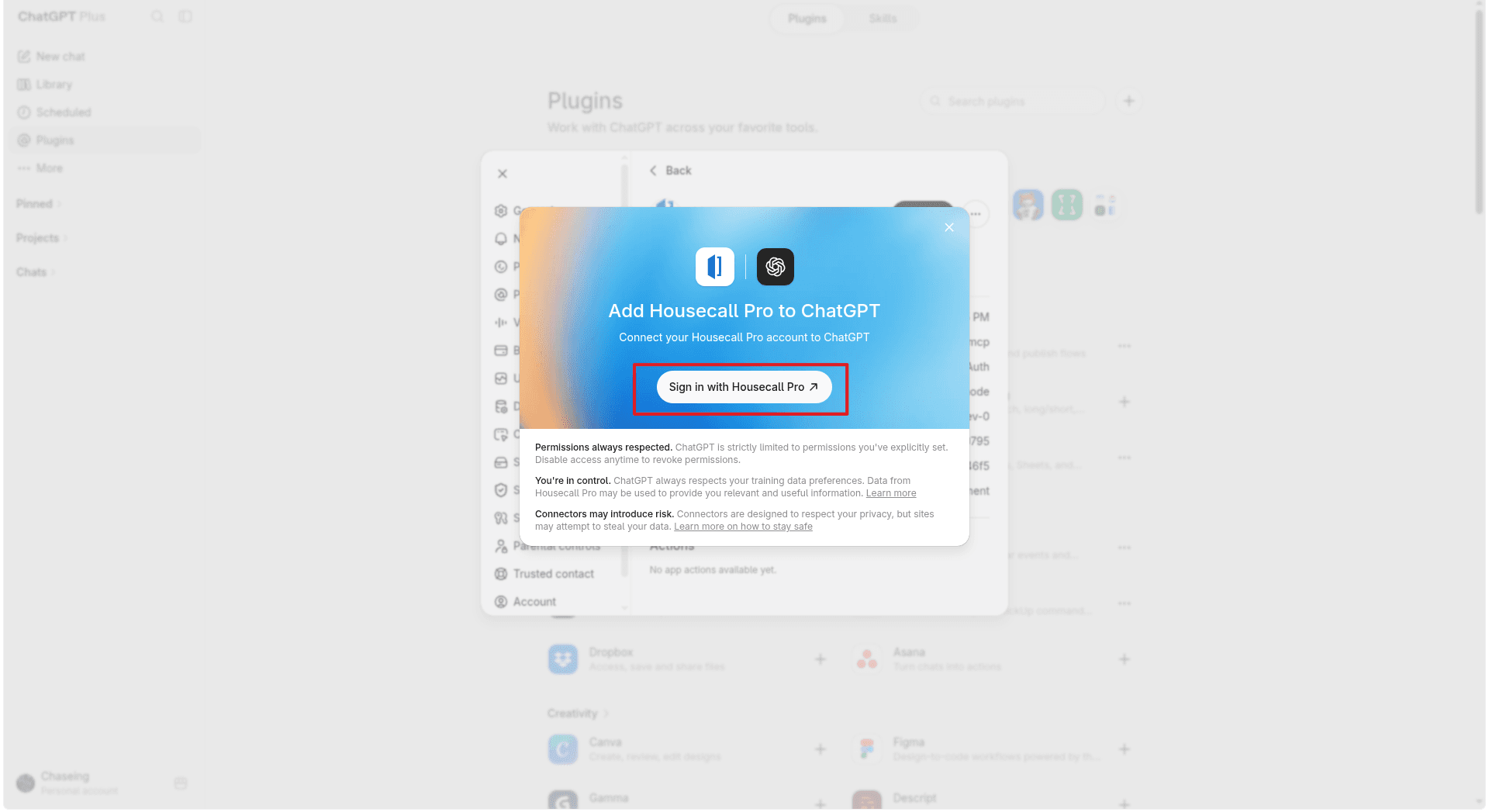
After you click Create, a popup appears asking you to connect. Click Sign in with Housecall Pro.
Authorize the connection in Inrconnect
You are redirected to Inrconnect. Select your organization and the Housecall Pro integration, then click Allow access.
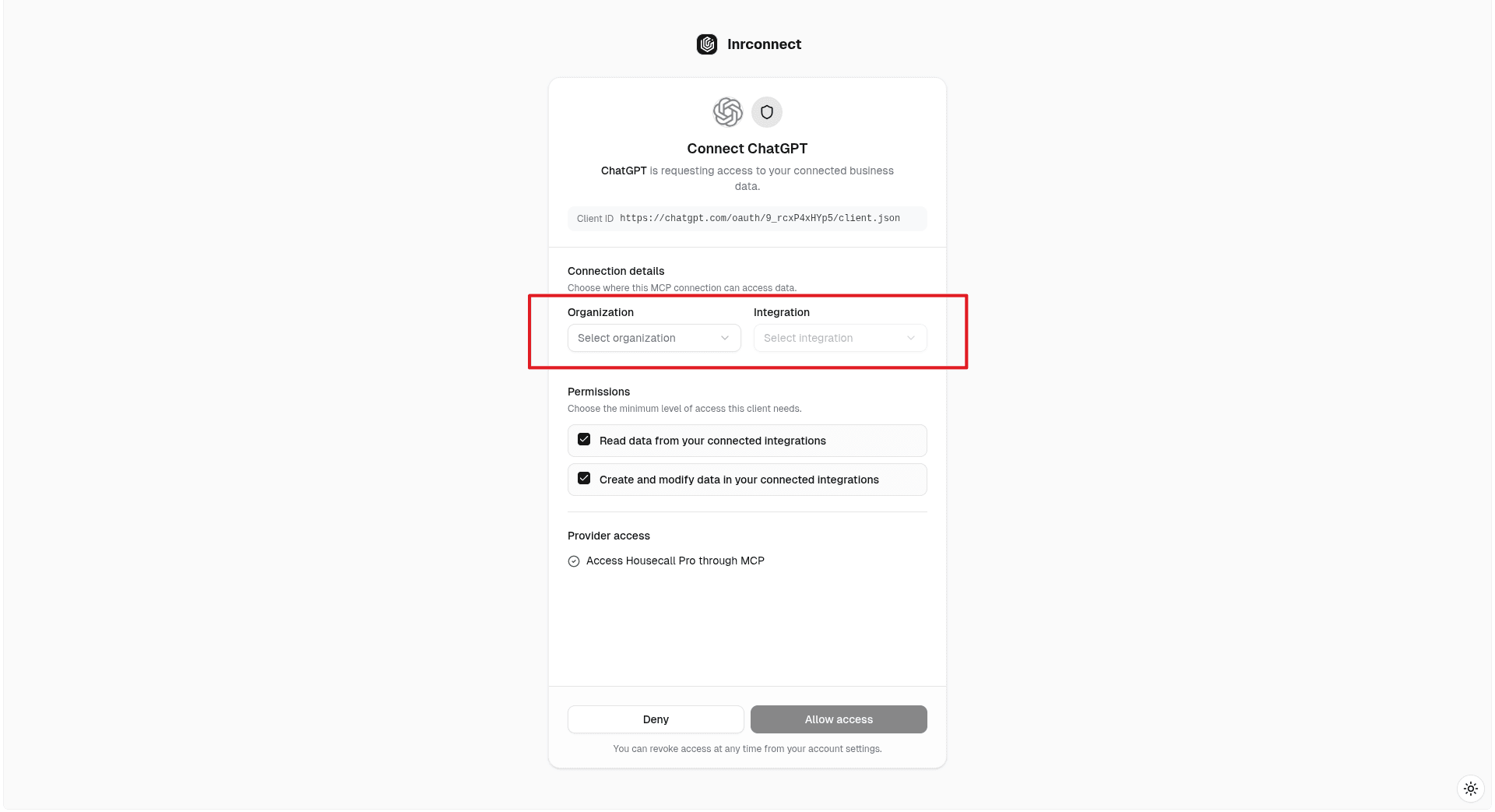
Don't see Housecall Pro in the integration list?
Connect your Housecall Pro API key in Inrconnect first - see Getting Started with Housecall Pro.
Test the connection
Back in ChatGPT, start a new chat, type @Housecall Pro to tag the tool,
and ask:
@Housecall Pro What can you do with this Tool?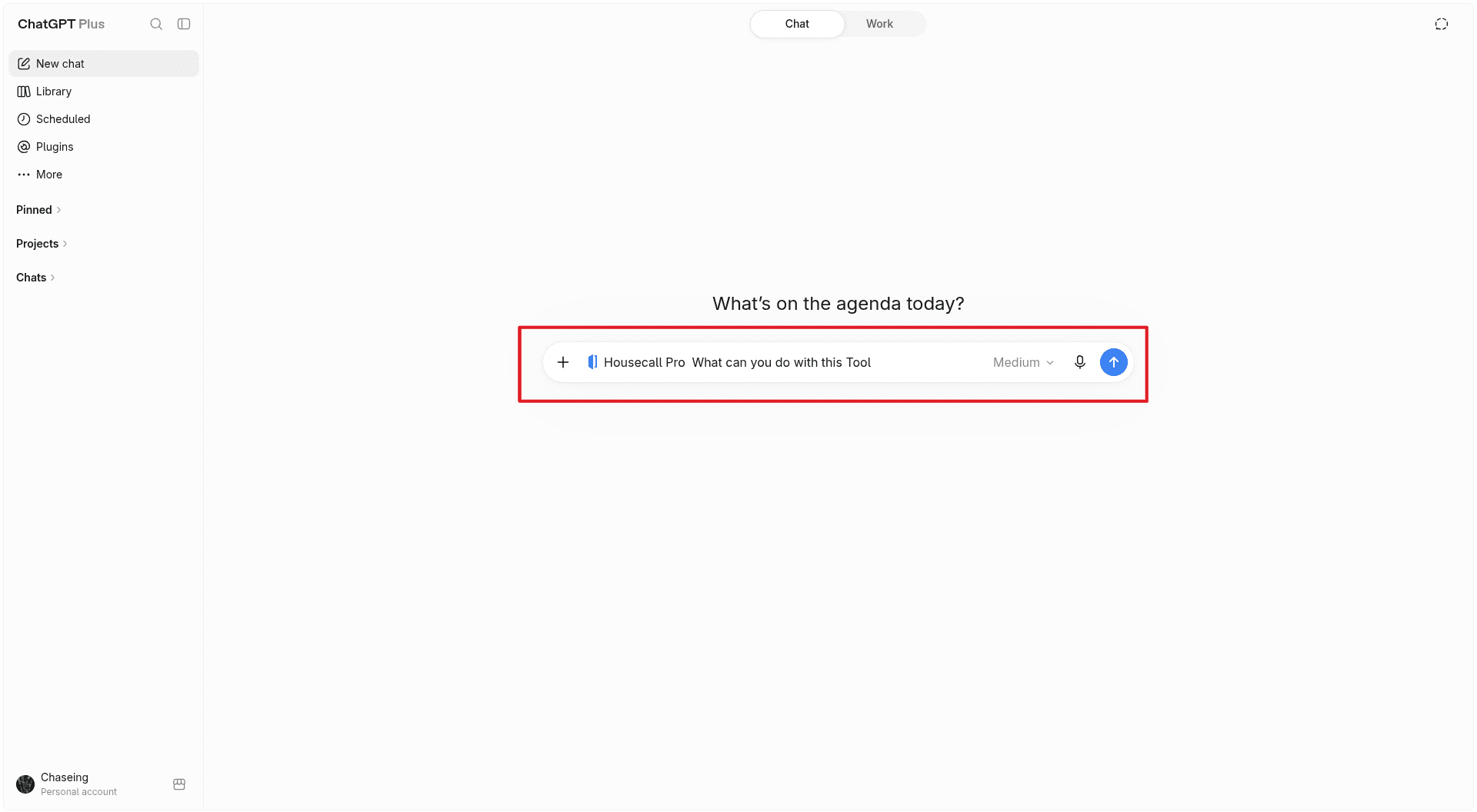
If ChatGPT responds with a summary of the available Housecall Pro tools, your connection is working.
Need Help?
If you run into any issues, email support@inrconnect.com and we will be happy to assist.